Written By
Jayant Rao
Published on
February 21, 2025

How we grew our website traffic by 5x using SEO on Webflow

How we grew our website traffic 5x using SEO on Webflow. From keyword research to technical fixes, see our data-driven strategy for success!

How to add NW Auto-Update Year Tool in Webflow?

The NW Auto-Update Year Tool is a simple and efficient Webflow tool that allows users to add a condition on their website which allows for year to be updated on your website automatically every year, without any change from your end.

Step#1

Adding the script within Page Settings on Webflow.

Integrating our Auto-Update Year tool into your website is simple! Follow these steps to get started:

  1. Click on "Pages" in the left navigation or press "P" on your keyboard.
  2. Select the settings icon beside the page you want to add the script to.
  3. Scroll down to the "Before </body> tag" section.
  4. Simply copy the script we've provided and paste it here.

NOTE: If the text element is on most of the pages, if not all, paste the script in the project setting - custom code - "Before </body> tag"

Adding script within Page Settings on WebFlow

Step#2

Set Custom Attribute


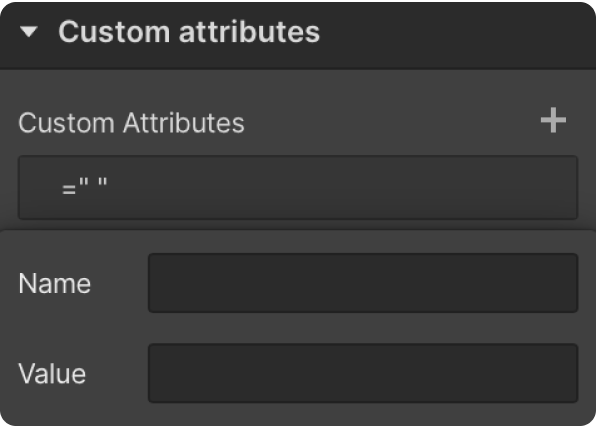
To ensure your Auto-Update Year tool works seamlessly, apply custom attributes directly to your text element.

  1. Select the element you want to use you to display the year.
  2. Go to the Element Settings panel.
  3. Add the following custom attributes:
    • Name: 'data-year'

Step#3

Publish Your Site

It's recommended to publish your site in a staging environment first to ensure the auto-update year tool works as expected. Once confirmed, publish it to your live site.

By following these steps, you'll successfully implement the Auto-Update Year Tool on your Webflow site.

On this page

How to add NW Auto-Update Year Tool in Webflow?

The NW Auto-Update Year Tool is a simple and efficient Webflow tool that allows users to add a condition on their website which allows for year to be updated on your website automatically every year, without any change from your end.

Step#1

Adding the script within Page Settings on Webflow.

Integrating our Auto-Update Year tool into your website is simple! Follow these steps to get started:

  1. Click on "Pages" in the left navigation or press "P" on your keyboard.
  2. Select the settings icon beside the page you want to add the script to.
  3. Scroll down to the "Before </body> tag" section.
  4. Simply copy the script we've provided and paste it here.

NOTE: If the text element is on most of the pages, if not all, paste the script in the project setting - custom code - "Before </body> tag"

Adding script within Page Settings on WebFlow

Step#2

Set Custom Attribute


To ensure your Auto-Update Year tool works seamlessly, apply custom attributes directly to your text element.

  1. Select the element you want to use you to display the year.
  2. Go to the Element Settings panel.
  3. Add the following custom attributes:
    • Name: 'data-year'

Step#3

Publish Your Site

It's recommended to publish your site in a staging environment first to ensure the auto-update year tool works as expected. Once confirmed, publish it to your live site.

By following these steps, you'll successfully implement the Auto-Update Year Tool on your Webflow site.