Share
How to add Social Share feature in Webflow?
Quickly add social share feature on your Webflow website by changing the attributes of the required buttons.
NOTE: Social share feature is available for Facebook, Twitter, LinkedIn, Pinterest, Reddit and Email
Step #1
Copy Social Share <script>
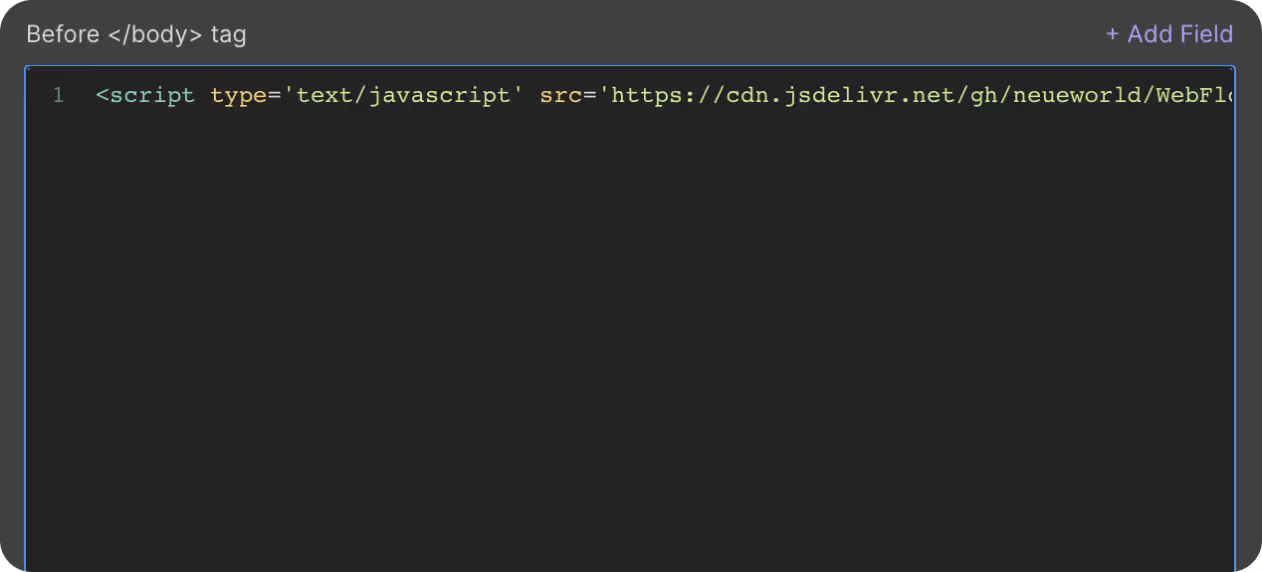
Copy the script and paste it into the </body> tag of the particular page. You can do so by clicking on
- Pages on the left navigation or, by tapping (P) on your keyboard
- Select the settings icon beside the page you want to add the script in
- Scroll down, you will see a section called Before </body> tag
- Paste it here
Step #2
Set Custom Attributes

You will need to add custom attributes to the social share button.
- Name : nw-share is added to the attribute 'name' field of the button. It is common for all the social share platforms.
- Value : The attribute value would depend on the platform you are sharing on. Below are the values against the respective platforms
'facebook' : Facebook
'pinterest' : Pinterest
'twitter' : Twitter
'linkedin' : LinkedIn
'reddit' : Reddit
'email' : Email - Example: nw-share=" twitter "
Step #3
Publish your site
It's highly recommended to publish your site on staging environment to make sure the script is working. Once you have confirmed it, you can publish it to your main domain.
<script type='text/javascript' src='https://cdn.jsdelivr.net/gh/neueworld/WebFlow-Tools@main/social-sharing-v1.0.0.0.js'></script>
Copy Script
Copied!
Get exclusive access
Our team has put in a considerable amount of time and effort to develop these resources, and we are excited to share them with our premium followers.
By subscribing, you'll stay ahead of the curve and gain valuable insights into cutting-edge WebFlow techniques.
.avif)